Click the cup.
Start or stop an awake session right from the menu bar. A filled cup means your Mac is staying awake.
 Extra Caffeine.
A LITTLE COFFEE FOR YOUR MAC
Your Mac gets coffee. You get sleep.
For the builds, agents, and overnight tasks that need a little more time. One click in your menu bar keeps idle sleep from calling it a night.
Get it on the Mac App StoreUS$0.99 once. No subscription.
Cheaper than the tokens you’d spend building this.
macOS 14+ · Apple silicon & Intel · Regional prices & applicable tax in the App Store
LESS SETUP. MORE SHIPPED.
No terminal incantations. No complicated setup. Just a coffee cup in your menu bar.
Start or stop an awake session right from the menu bar. A filled cup means your Mac is staying awake.
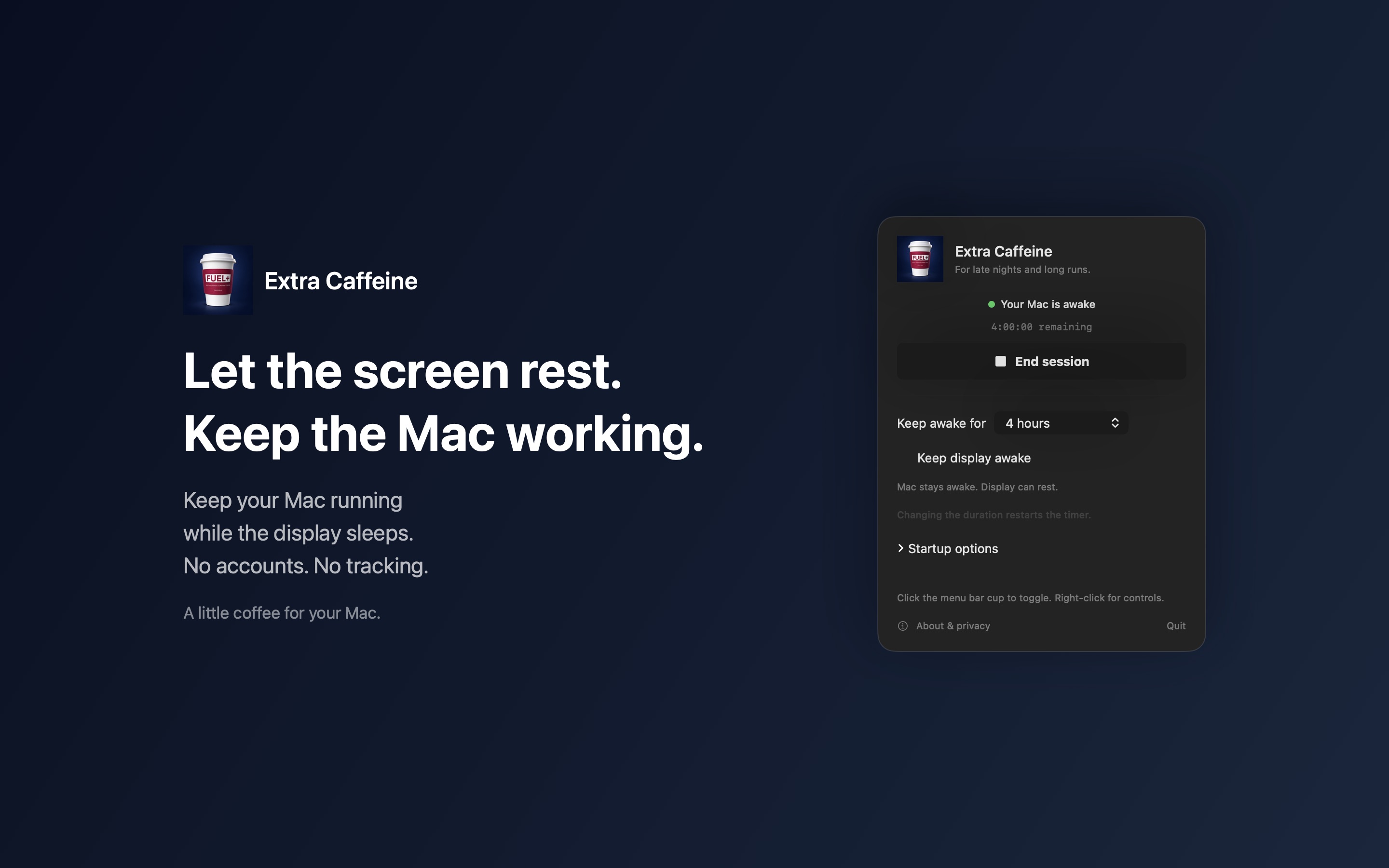
Choose 15 minutes to 8 hours, or stay awake until you turn it off. Right-click the cup to open the controls.
Turn off “Keep display awake” and let the display sleep while your Mac keeps working.
BUILT FOR THE LONG RUN
Local AI tasks. Long builds. Overnight jobs.
Keep idle sleep out of the way.
The Mac App Store edition runs locally. It doesn’t read your files, prompts, or AI conversations, and it has no network-access entitlement. Your preferences stay on your Mac.
BEFORE YOU CALL IT A NIGHT
Extra Caffeine prevents automatic idle sleep while your Mac is running. Your agent still needs to be running and may need an internet connection, permissions, or your input. The app doesn’t override AI provider timeouts, usage limits, errors, or approval requests.
Keep your laptop open for overnight work. Extra Caffeine doesn’t override lid closure, manually choosing Sleep, low battery, or thermal protection. It also respects macOS screen-lock policies.
No. Uncheck “Keep display awake” in the controls to let the screen sleep while your Mac stays awake.
Yes. Extra Caffeine is US$0.99 on the US Mac App Store, with local prices in other regions. Apple displays your regional price and applicable taxes. There’s no subscription or app account to create.
Extra Caffeine requires macOS 14 Sonoma or later and supports both Apple silicon and Intel Macs.
For the convenience: a visible menu bar switch, session timers, a display-awake option, and optional launch at login. It’s a small utility with a small price.
A LITTLE COFFEE GOES A LONG WAY
One purchase. No subscription. Available on the Mac App Store.
HERE IF YOU NEED US
Click the menu bar coffee cup to toggle an awake session. Right-click or Command-click it for controls. Opening Extra Caffeine from Applications also opens the controls.
Choose a duration from 15 minutes to 8 hours, or “Until turned off.” In version 1.0, changing the duration during a session restarts its timer. Uncheck “Keep display awake” if you’d like the screen to sleep.
Expand “Startup options” for launch at login and automatic activation. macOS may ask you to allow the app in System Settings → General → Login Items.
If something isn’t working, end the session and restart the app. For help, contact Chester Wong Consulting with your macOS version and what happened. Please don’t send passwords, API keys, or private AI conversations.
SIMPLE BY DESIGN
Effective October 9, 2026 · Extra Caffeine by Chester Wong Consulting Ltd
The Mac App Store edition has no accounts, advertising, analytics, tracking, server connection, or network-access entitlement. It does not access your files, prompts, AI conversations, contacts, camera, microphone, or location.
Preferences are stored locally, including session duration, display-awake settings, and automatic activation. Optional launch at login is managed by macOS. These settings are not sent to us.
The direct-download edition connects to our server for signed automatic updates. It has no accounts or analytics. Read about update settings and privacy.
Apple processes App Store purchases and may handle diagnostics under your Apple settings and Apple’s privacy policy. We do not operate an in-app payment service.
This website is separate from the app. It uses no analytics scripts or tracking cookies; its hosting provider may process standard request information to deliver the site. External links open sites with their own privacy practices. For privacy questions, contact us.